
GRID MODULE / TRADE MANAGER ADD-ON

Grid Trading Module for MT4 & MT5

MT5MT4

Plan several pending orders on one chart before placing them.

Choose how far apart the orders sit and how their size is calculated. Use Group to adjust the whole grid or Individual to move one order at a time.

A TRADE MANAGER ADD-ON

Use Grid Module with Trade Manager

The Grid Trading Module is an add-on for Trade Manager, not a standalone trading application. Load both products on the same chart.

Grid Trading Module MT4 requires Trade Manager for MT4; Grid Trading Module MT5 requires Trade Manager for MT5. Use the matching versions in MetaTrader 4 or MetaTrader 5.

Explore Trade Manager

THE GRID MODULE PANEL

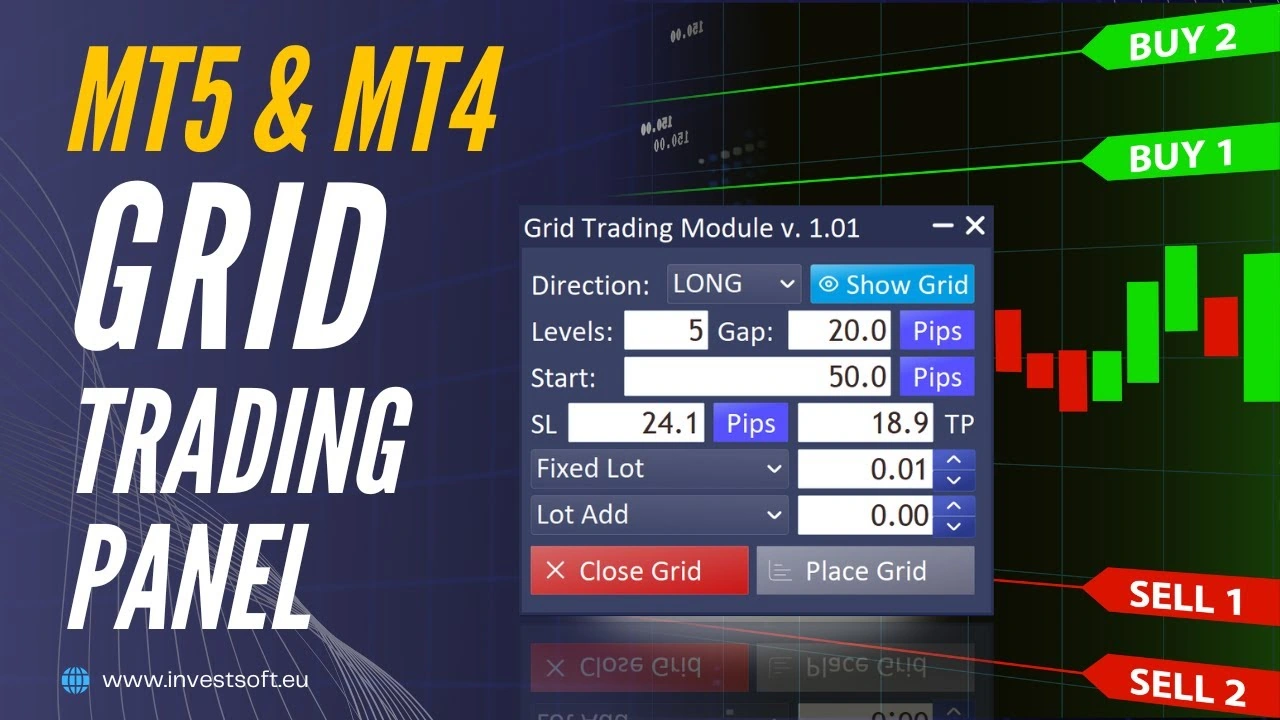
Build and control the whole grid from one place.

The Grid Module brings grid structure, order sizing and chart controls into one dedicated panel for MT4 and MT5.

You can prepare the setup visually, review how the orders are arranged and adjust the plan before the grid is placed.

Position size, risk settings and protection levels stay connected to the same grid setup, so you can review the complete structure without configuring each order separately.

Once the setup is ready, the prepared grid can be submitted and managed through Trade Manager.
FROM PLAN TO PLACEMENT

See the Grid Trading Module in action

See how the Grid Trading Module for MT4 and MT5 is configured on the chart, how the grid is previewed, and how multiple planned orders can be placed from the same workflow.

Trade Manager MT5 and MT4: Grid Trading Module | Place Multiple Orders Fast

Trade Manager MT5 and MT4: Grid Trading Module | Place Multiple Orders Fast
YouTube loads and starts only after you choose to play.

GRID MODULE CAPABILITIES

Build and manage grid setups your way

Start with a simple evenly spaced grid or shape the entries around a specific price range and spacing pattern. The controls below define where the grid begins, how far it extends and how the levels are distributed.

Build the grid structure

Define the number of planned entries, their starting point and the base grid spacing in MT4 or MT5 before orders are placed.

Levels
The number of planned entries in the grid.
Start
Where the grid begins relative to the setup.
Gap
The base distance between grid entries.

Place Grid
Submit the prepared entries through Trade Manager. The module determines the appropriate pending-order type for each level from its location relative to the market.

Choose how your grid orders are spaced

Mult
Multiply each gap by the same factor to widen or narrow the spacing.
Add
Add or subtract the same amount from each successive gap.
Log ↑
Gradually widen successive gaps with a logarithmic progression.
Log ↓
Gradually narrow successive gaps with the opposite logarithmic progression.

These modes allow equal, gradually expanding, gradually contracting or non-linear grid spacing instead of requiring the same distance between every entry.

Define exact grid prices and range

Build the grid between two selected technical or price levels, with precise control over individual entry prices and the overall grid range.

  • Assign an individual grid level a precise market price.
  • Set two exact outer boundary prices to define the full grid range.
  • Distribute the remaining levels within that range using the selected progression in Group mode, or position them independently in Individual mode.

Double-click a level bar to enter the exact grid price.

GROUP & INDIVIDUAL MODE

Move the whole grid or edit every level independently

GROUP MODE

Reshape the grid as one structure

  • Drag the middle grid level to move the entire grid.
  • Drag an outer level to stretch or compress it.
  • The remaining levels recalculate using the selected spacing progression.

INDIVIDUAL MODE

Position each entry independently

  • Move each grid level separately.
  • Create an irregular, custom layout.
  • Levels do not need to remain evenly spaced.

LOT SIZE & GRID RISK CALCULATION

Choose how volume and risk are calculated

Fixed Lot

Use a configured volume for a fixed lot grid, or vary position size across the levels with Lot Add or Lot Multiple.

Risk per grid

Define a risk budget for the complete planned grid.

Risk % Grid
A percentage-of-balance budget for the whole grid.
Risk Cash Grid
A cash risk budget for the whole grid.

Risk per order

Calculate risk separately for each individual grid order.

Risk % Order
A percentage-of-balance budget applied to each order.
Risk Cash Order
A cash risk budget applied to each order.

Scale lot size across grid levels

Lot Add

Increase the size of each successive order by a set number of lots.

Lot Multiple

Multiply each successive order size by the factor you choose.

Different grid levels can use different position sizes. In Fixed Lot mode, Lot Add 0 or Lot Multiple 1 keeps the lot size equal.

Per-order risk adds across the setup. Review total exposure and broker volume limits before placement. Planned stop-based risk is an estimate; execution, gaps and costs can change the realized result.

STOP LOSS & TAKE PROFIT

Use common or individual Stop Loss and Take Profit

COMMON SL / TP

One shared set of protection levels

Use a common Stop Loss and common Take Profit for the entire grid. Define the shared levels in pips or as a specific price.

INDIVIDUAL SL / TP

Protection for each entry

Each grid entry can use its own individual Stop Loss and individual Take Profit, rather than sharing one pair of levels with the entire grid.

WAIT FOR TRADE & FOLLOW

Connect the planned grid to execution or market movement

WAIT FOR TRADE

Build the grid from an executed trade

Matching tradeExecution priceRemaining grid

Wait for trade waits for a matching market trade, then builds the remaining grid entries from its actual execution price. It can also react when a pending order is activated.

The actual fill becomes the reference for the grid. Optional magic-number filtering lets you specify which trades the module should respond to.

FOLLOW

Let the planned grid follow the market

Market movesPlanned grid follows

Before submission, Follow lets the planned grid maintain a defined distance from the current market price. As the market moves, the grid follows while preserving the configured relationship.

When it applies
The complete planned grid must remain on one side of the market. Follow concerns the planned grid before its orders are placed.

CONFIGURATION & CHART CONTROLS

Save setups and stay in control

PRESETS

Save and reuse grid configurations

Grid presets store and restore parameters, spacing progression, lot / risk settings, Individual mode layouts and other relevant module configuration.

Reuse saved setups on different instruments, then check that the settings suit the instrument and the trade you are preparing.

Close the grid from one workflow

Close Grid triggers the grid-closing operation through Trade Manager, rather than requiring each trade or order to be handled manually.

Control the chart preview

Show / Hide Grid
Hide the grid visualization without removing the configured levels.
Lock
Prevent accidental dragging, price editing and modification of the planned grid on the chart.

Keep your grid configuration between sessions

The module restores relevant settings and grid visibility after restart where supported. Progression modes and lot-calculation methods retain their own configured values.

Adjust the Grid Module panel

Choose a light or dark theme, change the panel size, or minimize it. Status messages, waiting indicators and operation results show what the module is currently doing.

CHOOSE YOUR PLATFORM & LICENSE

Pricing & License Options

Lifetime

Lifetime license

$80 USD

Choose your platform

Requires Trade Manager for the same platform. Choose the module-only or two-product option in the next step.

QUESTIONS & ANSWERS

Frequently asked questions

Does Grid Module work without Trade Manager?

No. Install Trade Manager first and load Grid Module on the same chart. The MT4 add-on needs Trade Manager for MT4; the MT5 add-on needs Trade Manager for MT5.

How does Place Grid choose Limit or Stop orders?

The pending order type is determined for each planned entry from its price relative to the market. The prepared orders are submitted through Trade Manager.

What happens when I enter a grid level price manually?

Double-click the level bar to enter an exact price. Group mode applies the change within the grid structure; Individual mode lets you edit that level independently.

Can I set risk for the whole grid instead of each order?

Yes. Choose Risk % Grid or Risk Cash Grid for a complete-grid budget. The corresponding Order modes apply the chosen budget separately to each order.

When can the planned grid follow the market?

Follow is available before placement when all planned entries remain on one side of the market. It maintains the configured distance as price moves.

What can trigger Wait for trade?

A matching market trade or the activation of a pending order can provide the execution reference. Optional magic-number filtering controls which trades qualify.

Can I reuse a Grid Module preset on another instrument?

Yes, saved configurations can be reused across instruments, including Individual mode layouts. Check the restored settings against the new instrument before placing orders.

Does one license include both MT4 and MT5?

No. MT4 and MT5 versions are licensed separately. Select the platform that matches your Trade Manager installation.

What does Grid Module cost if I do not own Trade Manager?

Grid Module Lifetime costs $80, and Trade Manager Lifetime costs $99, making the combined total $179. If you already own the matching Trade Manager version, you only need the $80 add-on. The purchase flow asks whether you own Trade Manager before sending the selected products to the cart.

YOUR NEXT STEP

Prepare your next multi-order setup.

Choose the platform and confirm whether you already own Trade Manager. The existing direct-store flow takes your selection to the cart, then checkout.

Request a Free Trial

Products

Platforms

Buy Grid Module

Grid Module: $80 · Subtotal: $80 USD

MT4 and MT5 are separate licenses. The two-product option uses normal prices, with no bundle discount. Applicable taxes are calculated in the store.